This article is intended to provide you with some hints and tips when you system is running slower than normal and you are not sure what might be the problem. When this happens, users often think that malware is the cause. In some cases that will be correct but there are other possible causes as well and we shall explore some of these in this article and try and provide some ideas that may help.
Article Layout
This article is laid out in sections, with each section containing causes and solutions. The sections are as follows:
- Introduction
- Cleaning your system inside and outside
- Temporary Files
- Removing old programmes
- Unnecessary programmes
- Start up programmes
- System memory
- Hard disk de-fragging
- System swap files
- Hard disk errors
- System file errors
- Running services
- Device driver conflicts
- Internet Explorer
- Anti Virus programmes
- Conclusion
Colour coding has been used throughout this article in the following way:
- Section Headings are coloured Purple with bold formatting.
- Article and Tutorial links are coloured Sienna with bold formatting.
- Links to articles or threads at TSF are coloured Blue with bold formatting.
All links have been tested and reviewed and are safe and correct at the time of writing. Links are regularly reviewed to ensure they remain accurate.
Please note that TSF does not promote, or is associated with any software or websites mentioned in this article. Where software or other websites are mentioned, or links provided, they are done, as far as practically possible while maintaining the readability of the article, on a purely alphabetical basis.
IMPORTANT - before making any system tweaks or changes, it is highly advisable to create a new System Restore point. This allows you to revert back in the event that the changes cause a problem. Detailed System Restore guide links can be found at the end of this article.
Cleaning your system inside and outside
Dust and dirt builds up inside a computer case and this can affect your cooling fans, reducing the amount of airflow. Reduced airflow can cause your processor to overheat resulting in slow operation or even unexpected shutdowns. Heat is the major cause of component failure inside a computer. While many of today’s processors have the ability to “throttle back” (slow down) if the core temperature reaches a certain threshold, prevention is the best defence. Cleaning the inside of your system is relatively easy – you just need to take some sensible precautions. Two useful guides to PC cleaning.
Temporary Files
Temporary or temp files can build up over time and eat into your precious disk space. When you install programmes, the installer uses temp files as part of the set up process. Some programmes also use temp files when in use. These temp files should be removed when the installer or programme is finished, but this does not always happen. And, of course, your browser will collect temp files as well. A build up of temp files could leave Windows struggling to find room for its swap file (see below) – so everything slows down.
How do you clean out temp files? There are two easy ways – manually or by using a proprietary cleaning programme. Note that the cleaning programmes will often offer the option to clear out Temporary files created by your browser.
Manually clean XP temp files
Manually clean Vista temp files
Manually clean Windows 7 temp files
Cleaning Programmes – there are various such programmes available for free. Among the best are
ATF Cleaner
CCleaner
CleanUp!
Don’t forget that XP, Vista and Windows 7 have theirs own utility for cleaning – it can be found viaStart > All Programs > Accessories > System Tools > Disk Cleanup.
Note: TSF does not recommend the use of Registry Cleaners. In the vast majority of cases, the Registry will not require ‘cleaning’ and, even if it did, you would be unlikely to notice any performance improvement.
Removing old programmes
Do you still have some old programmes installed? When did you last use them? Remember that ‘trial’ software you installed? Has the trial period expired? Could you perhaps uninstall it (assuming you have the original installation disks)? Uninstalling such programmes will help free vital disk space. Remember to re-boot after uninstalling – this helps to clear memory and the final remnants of an uninstalled programme.
Unnecessary programmes
By this I mean some of the numerous “enhancement” programmes available, that, while they may make your desktop look terribly exciting, are actually eating up precious resources. Things like third party screensavers and fancy wallpapers, Windows Taskbar replacements, WindowBlinds, Actual Transparent Window, XP Visual Styles, Stardock Theme Manager and so on. Nothing wrong with using them – they are all respected legitimate applications – but they may be contributing towards the slowdown of your system.
Startup programmes
Many applications insist on starting either the complete programme or a component of the programme whenever Windows starts. Many of these start ups are unnecessary and can be stopped. A good way to review the number of start up programmes is by using a start up manager utility, such as Spybot Search & Destroy, StartUpLite or Autoruns. In Spybot, you’ll need to click Mode > Advanced to ensure you have access to the Tools section, then select System Startup in the left pane. A list of programmes that start when you boot up will be displayed in the right pane. You simply uncheck the ones you don’t need.
StartUpLite is very easy – just download the small file and double click StartUpLite.exe. A box appears showing programmes that don’t need to startup at boot. Choose whichever options you prefer and clickContinue.
Autoruns gives you similar information, although presented in a slightly different way, and with more detail. Again, you simply uncheck a box beside the entry you wish to disable.
Remember to research a start up if you are not sure what it is – some of the entries that may appear and which can safely be disabled are things like Update Schedule entries for Adobe Acrobat, Sun Java, QuickTime and so on. If in doubt, post in our Forums, choosing the Forum that’s relevant to your Operating System.
Note: You should NOT use MSConfig to permanently disable programmes from automatically starting at boot up. This utility is meant as a trouble-shooter – not a long term solution. If you uninstall a programme that has already been disabled using MSConfig, then it’s likely there will be orphaned Registry entries left behind. These could cause potential problems when trying to start your system. Use one of the start up managers mentioned above.
System memory
Lack of memory can be a real issue, especially with today’s high performance machines and Operating Systems (OS). If you’re using Windows (and let’s face it, most of us are) then you need to ensure you have the appropriate amount of RAM for your system. Microsoft list “minimum requirements” with each OS – but they are in the business of selling software. That’s why their “minimum requirements” are always at the lower end of the scale. There are numerous sites around that will advise you need “x” amount for XP and “y” amount for Vista. As a general rule, Vista and Windows 7 work well with 2GB and XP with 1GB. You can use more, of course, but as a minimum these figures are accurate. 64-bit systems do not really have memory limits (there are theoretical limits of 16 exabytes (1 Exabyte = 1 billion gigabytes)) but you’ll find that such systems will be able to handle large amounts of memory.
If you don’t have very much RAM, what happens? Well, Windows loads programmes into memory to allow fast access. When it has no more memory left, it will start using your hard disk. This is much slower than using RAM, so your programmes will appear to run more slowly. The part of the hard disk used by Windows is called a swap file. So, a lack of RAM can also eat into your hard disk space as well.
RAM is not terribly expensive at the moment, so it makes sense to upgrade. You can find out what type of RAM you need by downloading PCWizard – a system analyser (it’s free!) or going to one of the manufacturer’s sites such as Crucial and using their memory advisor tool. Once you know the type of RAM you need, there are plenty of online stores to choose from.
Hard disk de-fragging
Over a period of time, data written to your hard disk becomes fragmented or scattered all over the disk. This makes it harder for the system to find the data it needs. By defragging your disk, or putting the data in a more logical sequence, your system performance will improve. NOTE: Windows will not let you defrag a drive if there is less than 15% free space available. Keep an eye on your free space!
You could use a defragging utility such as Sysinternals PageDefrag – this is free and easy to use.
System swap files
You can change the settings on your swap file to allow Windows to have more disk space to play with. This disk space is also known as Virtual Memory. For a 32 bit Operating System (which most users will have) set any amount up to a maximum of 4Gb. Try and at least match the amount of RAM in your system. Of course, you will need to have enough free disk space for this swap file.
Something else to consider is that the swap file should not be fragmented in order to obtain the best results. This can be done by selecting ‘No swap file’, rebooting (you have to do this, to apply the changes), defragging the drive and then resetting the swap file to a size of your choosing. The swap file will now be an area of the maximum contiguous (uninterrupted) free space – and therefore optimum performance.
Note: When choosing a value it is often suggested to set a static size swap file – set the Initial and Maximum amounts to the same value. This saves Windows from using resources to manage a dynamic swap file.
Hard disk errors
A hard disk will not last forever. Even a new hard disk can have problems. However, many problems can be fixed, simply by running a Windows utility called ChkDsk. This will scan your hard disk and repair any file system errors while verifying the integrity of the drive. Guides from Microsoft on using ChkDsk can be found.
System file errors
Sometimes critical system files may become damaged or corrupt. This will obviously affect your computer’s performance. However, Windows has the ability to replace any damaged files on its own – this facility is called Windows File Protection. It can be started manually by typing a simple command into the Run box - sfc /scannow. This command immediately starts the Windows File Protection utility and it then checks and scans all system files to ensure their integrity.
A detailed guide to using Windows File Protection with XP.
For users with a pre-installed version of XP, sfc may ask you for your Windows CD in order to copy the relevant files. If you don’t have a Windows CD or if sfc cannot find the files it needs.
For users who installed Service Pack 2 for XP by downloading from the internet, sfc may ask you for an XP SP2 CD – which you won’t have. You may need to create a slipstreamed CD to ensure sfc works correctly. Slipstreaming is simply a way of incorporating SP2 into your Windows installation – you create a new disk with Windows and SP2 all in one. Guides to slipstreaming can be found on the internet, and a useful programme called Autostreamer, which does most of the work for you, can be downloaded.
Note that Windows File Protection in Vista and Windows 7 is now called Windows Resource Protection which, as well as protecting critical files, also protects the Registry. However, the basic principles are the same. To run the sfc command in Vista or Windows 7, you must be logged in as an Administrator.
Running services
Windows generally comes with a raft of running services, many of which are not really required. You can safely stop some of these services and improve the boot time and speed of your system. Many installed programmes make themselves start up as soon as you boot the PC. They just run in the background, even although you don’t actually use them. Usually these programmes can be stopped from automatically loading – if you need to start them, you can do this manually.
One service that often causes a system to slow down is the Indexing Service on Windows XP – this can be turned off.
Device Driver Conflicts
Are all your hardware drivers up to date? Using an out of date driver could cause hardware conflicts and crash your system. Have a look at Microsoft’s suggestions on troubleshooting driver/device conflicts.
Internet Explorer
IE 7 includes a phishing filter – very useful indeed. But it can slow down your browsing as the filter checks each web page. Have a look at Microsoft’s suggestions.Microsoft changed this when they introduced IE 8 - for help with IE 8 SmartScreen Filter.
Anti Virus Programmes
Never use more than one Anti Virus. Although it might sound like a great idea to run two or more, in reality it’s not. AVs usually have a ‘real time’ monitor that helps protect your system. This monitor will want to have a look at any file that changes or has been added to the system. If you have 2 AVs then every time one looks at a file, the other AV will think that file has changed so it will want to take a look as well. Now the second AV thinks that file has changed so it wants another look. So, of course, the first AV thinks that file has changed….you get the idea. You could end up with an unstable system, a really slow system or unexplained crashes.
Conclusion
Having done all your tweaks and clean ups, create a new System Restore point – this gives you a ‘fall back’ position with all your new changes.
A guide to using System Restore in XP
A guide to using System Restore in Vista
A guide to using System Restore in Windows 7
No more problems? Excellent – be sure to revisit this article to help keep your system running smoothly.
Still having problems? Well, it could indeed be malware – please start here and follow the instructions to receive assistance.
Virus/Trojan/Spyware Removal Help
(formerly Hijackthis Log Help)
* DO NOT FIX ANY ENTRIES OR DELETE ANY FILES YOURSELF. Do not run any specialized tools that you see being used in other threads without direct supervision from one of our trained analysts. Be advised that running any specialized tools not listed in this topic, on your own, is done solely at your own risk
* It is also this forum's policy that we only address users with a legal copy of Windows. If during the course of a fix it is determined that the copy is not legal, we must stop the cleansing process.
=============================
How Soon Can I Expect Help?
=============================
Please be considerate of the fact that the people helping you are all volunteers, and in many cases usually have a job, and a limited amount of time to help, and therefore can only do so much. Also please note that there are many more people in need of assistance than there are trained staff members who may assist. Patience for this free assistance is required. If there is an immediate need, please take the machine to a local technician.
If no one has replied to your thread within 72hrs after you posted, please reply in your thread with the words "BUMP, please" to move it forward. Do NOT bump the thread unless 72 hours has passed. We try to work from oldest to newest posts so your wait will be longer if you bump it forward before the 72 hours is up. When looking threads to respond to, we look for threads with 0 reply, or 1 reply. If you bump, or add a post prior to the 72 hrs, your thread is highly likely to be overlooked by our queuing methods.
Additionally, do not bump more than once. If you do, it may appear as though the thread is being handled, and it may be overlooked. Early bump posts will be deleted.
NOTE: We are aware that users sometimes seek help from several Forums at the same time. Unfortunately, this can cause confusion and actually wastes time and resources - yours, ours and other Volunteers across the community. If you have already posted at another Forum, please advise us, or them, and choose just one.
Also be advised:
It is not our intent to repeatedly remove malware from the same member's machines. The intent of this free service performed by volunteers is to help remove malware from your machine, educate you on how it may have happened, and how to prevent that from happening again. To this end, we provide links to articles and tools which should make your visit to the Virus/Trojan/Spyware Help section of TSF a one time event. Please do enjoy the rest of Tech Support Forum as many times as you like!
==================================================
Change Your Login and Passwords to Financial Sites
==================================================
Many infections that the commercial scanners are failing to remove are the type of infections that allow hackers to remotely control your computer, steal critical system information and download and execute files without your knowledge.
If you do any banking or other financial transactions on the PC or if it should contain any other sensitive information, please get to a known clean computer and change all login and passwords where applicable. It would be wise to contact those same financial institutions to apprise them of your situation. Please refer to Microsoft's Online Safety article for tips on creating a strong password.
Do not change passwords or do any transactions from the infected computer until it has been cleaned.
===========================================
Preparing for the Malware Removal Process
===========================================
While we try our hardest to avoid them, accidents do happen. With today's malware being as it is, neither Tech Support Forum nor the Analyst providing the advice may be held responsible for any loss of your data. You're following the instructions given at your own risk. We recommend that you back up any data that’s important to you beforehand, just in case the worst happens.
1. As a general rule, to offset any unexpected mishaps, your personal data should be backed upregularly. If you do not already have a process in place that backs up your data, it is highly recommended you do this now.
2. If you suspect the machine to have cracked (illegal) software installed.
3. Uninstall the following via Add or Remove Programs in Control Panel:
- If you have more than one antivirus software installed, leave only ONE and uninstall the others.
- CD emulation software, such as DAEMON Tools or Alcohol. These can be reinstalled once any malware removal efforts are completed.
- File Sharing programs, otherwise known as P2P programs (Peer to Peer) such as uTorrent, Bittorrent, LimeWire, Morpheus, Azureus, Kazaa., as they are a major conduit for malware and a likely source of your current issues.
=================================
Downloads and Reports Required:
=================================
Before scanning, ensure all other running programs are closed. Do not use your computer for anything else during the scan.
Also, ensure there aren't any scheduled antivirus scans running while the dds scan is being performed.
*Note - Some antivirus programs falsely detect dds.scr as a threat.
====
DDS:
====
Download DDS and save it to your desktop.
Disable any script blocker, and then double click dds.scr to run the tool.
- When done, DDS will open two (2) logs
- DDS.txt
- Attach.txt
- Save both reports to your desktop.
=====
GMER: (32-bit systems only)
=====

Download GMER Rootkit Scanner from here.
Ensure you have uninstalled any CD Emulation programs before you run GMER as outlined above andhere
- Extract the contents of the zipped file to desktop.
- Disable your onboard Anti Virus and any other Active protection programs you have installed. If you are unsure how to do this, see this link.
- Double click GMER.exe.
- If it gives you a warning about rootkit activity and asks if you want to run a full scan...click onNO, then use the following settings for a more complete scan..
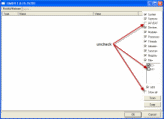
Click the image to enlarge it - In the right panel, you will see several boxes that have been checked. Ensure the following areUNCHECKED ...
- IAT/EAT
- Drives/Partition other than Systemdrive (typically C:\)
- Show All (don't miss this one)
- Then click the Scan button & wait for it to finish.
- Once done click on the [Save..] button, and in the File name area, type in "ark.txt" or it will save as a .log file which cannot be uploaded to your post.
- Save it where you can easily find it, such as your desktop

**Caution**
Rootkit scans often produce false positives. Do NOT take any action on any "<--- ROOKIT" entries
Please note:
If (and only if) there are problems using gmer as indicated above, run the scan with ONLY the Sections and C drive boxes ticked.

Click the image to enlarge it
- Before scanning, make sure all other running programs are closed and no other actions like a scheduled antivirus scan will occur while the scan is being performed. Do not use your computer for anything else during the scan.
- Double click the gmer.exe file.
- The program will begin to run, and perform an initial scan. If possible rootkit activity is found, you will be asked if you would like to perform a full scan. Click No, then select ONLY the Sections and C drive boxes. Click on Scan and wait for it to finish.
- Click on the Save button, and save the log file somewhere you can easily find it, such as your desktop, and attach it in reply
===========================
How the logs should be furnished:
===========================
Copy/Paste the contents of 'DDS.txt' to be posted as text to your post
The other two logs ...
* attach.txt
* ark.txt
... should be zipped/archived using Windows onboard zip utility before attaching to the post (Pleasedo not use Winrar - it is not available as a free utility for our Security Team members)

When posting your reply, the zipped file may be attached by clicking the [Manage Attachments]button.
It's located under [Additonal Options] on the composition page.
Browse to where you saved the file, and click Upload.

=================================
When posting the logs please observe the following
=================================
- Describe your issue/problem in DETAIL!. We cannot second guess as to what your issue(s) may be. Please provide as much detail as possible, including virus/trojan/worm names and locations if available. The more information you can give us the better we can help
- Only Attach the logs that we've specifically requested for you to. (Otherwise post it as text in the Reply box).
- DO NOT Wrap the log using Quote or Code tags. (DO make sure notepad word-wrap is OFF)
- DO NOT Post another Program’s log (Unless we specifically ask for it)
- DO NOT Cut off the header of any log (It contains important information for the Analyst)
- DO NOT Private Message the Analyst unless asked to do so.
- DO NOT post live suspicious links. We do appreciate that you want to give as much information as possible, but the links need to be munged. Alter the links to use hxxp:// instead of http://
Click here to post the following logs in the Virus/Trojan/Spyware Help Forum
Checklist
- DDS.txt - copy/pasted directly into Reply box
- Attach.zip (contains Attach.txt and ARK.txt) - attached to post
- Rootkits that alter critical/legit Windows files are becoming more commonplace. To facilitate a more rapid cleaning of your system, also tell us whether or not you have/have access to a Windows Install disc, or a Boot CD
Once you have posted, subcribe to your thread by going to Thread Tools located at the top of the thread.
Select Subscribe. Make sure it is set to Instant Notification.
This concludes the basic steps required before posting your logs. Thank you for taking the time to read this.

No comments:
Post a Comment